Quick start
SME OCPPSim simulates the charge point side. You need a CSMS (central system) for the chargers to connect to. The examples use SteVe, an open-source OCPP 1.6 CSMS; any OCPP 1.6J CSMS works. For OCPP 2.0.1 see An OCPP 2.0.1 charger below.
Windows executable
Download sme-ocpp-sim-vX.Y.Z-windows.exe from the
latest release and run it. Without
-c it uses the per-user file %USERPROFILE%\.sme-ocpp-sim\config.yaml, created from the bundled demo
configuration (configs/demo-site.yaml) on the first run, and opens the web UI at http://127.0.0.1:8082/.
Saving from the web UI writes back to that file, so changes are kept across restarts; delete it to start
again from the demo configuration. With -c FILE that file is used and saved in place. The console log shows
the config file in use at startup (config file: ...).
pip
Python 3.11 or later:
python -m venv .venv
.venv\Scripts\pip install sme-ocpp-sim
.venv\Scripts\sme-ocpp-sim -c my-site.yaml
pipx install sme-ocpp-sim works as well.
Docker
Images for linux/amd64 and linux/arm64 are published on GHCR. The container exposes only the web UI port (8082): the simulated chargers are WebSocket clients that connect out to the CSMS, so no protocol port is needed.
Inside the container localhost is the container itself, so the demo URL ws://localhost:8180/... does not
reach a CSMS on your machine. To reach a CSMS running on the Docker host, use host.docker.internal in the
CSMS URL, e.g. ws://host.docker.internal:8180/steve/websocket/CentralSystemService. Docker Desktop
(Windows / macOS) provides that name; on Linux add it with --add-host=host.docker.internal:host-gateway:
docker run --rm -p 8082:8082 --add-host=host.docker.internal:host-gateway \
  -v "$PWD/site.yaml:/app/configs/site.yaml" \
  ghcr.io/smartedge-tech-dev/sme-ocpp-sim \
  sme-ocpp-sim run -c configs/site.yaml --host 0.0.0.0 --no-browser
Set the time zone with -e TZ=Asia/Tokyo (default UTC). Offline image archives for docker load -i are
attached to every release.
Command line options
| Option | Meaning |
|---|---|
-c, --config FILE |
YAML configuration (default: the bundled configs/demo-site.yaml; Windows executable: ~/.sme-ocpp-sim/config.yaml, see above) |
--host 127.0.0.1 |
Web UI bind address (default localhost only; 0.0.0.0 exposes it on the LAN) |
--http-port 8082 |
Web UI port |
--no-browser |
Do not open the browser on start |
-v, --verbose |
Debug logging |
--version |
Show the version |
First connection to SteVe
- Start SteVe. The demo configuration expects it at
ws://localhost:8180/steve/websocket/CentralSystemService. - In SteVe, register the charge box IDs
CP-0001,CP-0002andCP-0003. SteVe refuses an unregistered charge box ID at the WebSocket handshake with HTTP 404; the UI shows this as a handshake error. - Register the OCPP tags
04A1B2C3andTAG-0002if Authorize should return Accepted. - Start SME OCPPSim. Each charger connects, sends BootNotification and StatusNotification, then heartbeats.
- In the web UI, plug a connector, swipe a tag and start a transaction. MeterValues appear in the frame log and the transaction in SteVe.
- From SteVe, send SetChargingProfile to a charging connector and watch the power follow the limit in the Smart Charging panel.
To use another CSMS, change csms_defaults.url in the YAML file or in the settings dialog of the UI. The
charger id is appended to the URL as the last path segment.
An OCPP 2.0.1 charger
A 2.0.1 charging station needs a CSMS that speaks OCPP 2.0.1 (subprotocol ocpp2.0.1). ocpp_version is set
per charger (or for all of them in csms_defaults), so 1.6 and 2.0.1 chargers can run side by side, each with
its own csms_url:
csms_defaults:
  url: "ws://localhost:8180/steve/websocket/CentralSystemService"   # OCPP 1.6 CSMS
  ocpp_version: "1.6"

chargers:
  - id: "CP-0001"                     # OCPP 1.6J
    max_power_w: 6000
    id_tags: ["04A1B2C3"]
  - id: "CS-2001"                     # OCPP 2.0.1, two EVSEs
    ocpp_version: "2.0.1"
    csms_url: "ws://localhost:9000/ocpp"
    connectors: 2
    max_power_w: 7400
    id_tags: ["04A1B2C3"]
    variables:
      - { component: OCPPCommCtrlr, variable: HeartbeatInterval, value: 120 }
configs/mixed-site.yaml is a complete example. Replace the 2.0.1 URL with the charging-station
endpoint of your CSMS; the station id is appended as the last path segment, as for 1.6. The version can also be
changed in the settings dialog of the UI (the charger reconnects).
For a 2.0.1 charger the web UI shows:
- the OCPP version in the charger list and in the detail header;
- EVSEs instead of connectors (
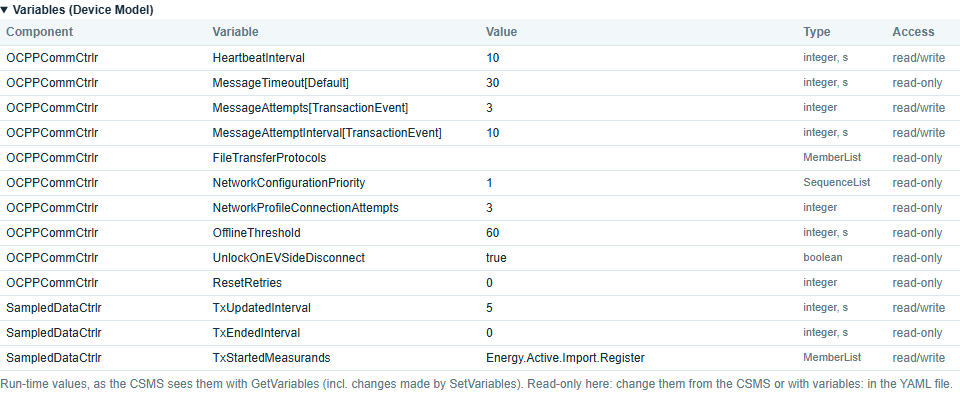
connectors: N= N EVSEs with one connector each); - Variables (Device Model) instead of configuration keys: the run-time values as the CSMS reads them with
GetVariables, incl. its SetVariables changes. The table is read-only (the HTTP API has no route to change a
variable): change values from the CSMS, or with
variables:in the YAML file; - an External limit (EMS) control in the Smart Charging panel, see Smart Charging.
The fault dialog lists the fault codes of the charger's version. A 2.0.1 StatusNotification has no error code,
so a 2.0.1 fault reports the EVSE as Faulted and the code is sent only as the stoppedReason of a transaction it
interrupts.