Device management
Devices can be added, copied, edited and deleted from the web UI while the simulator runs. Each change is validated and applied with a configuration reload; the previous configuration keeps running if it fails. Use File > Save to write the result back to the config file.
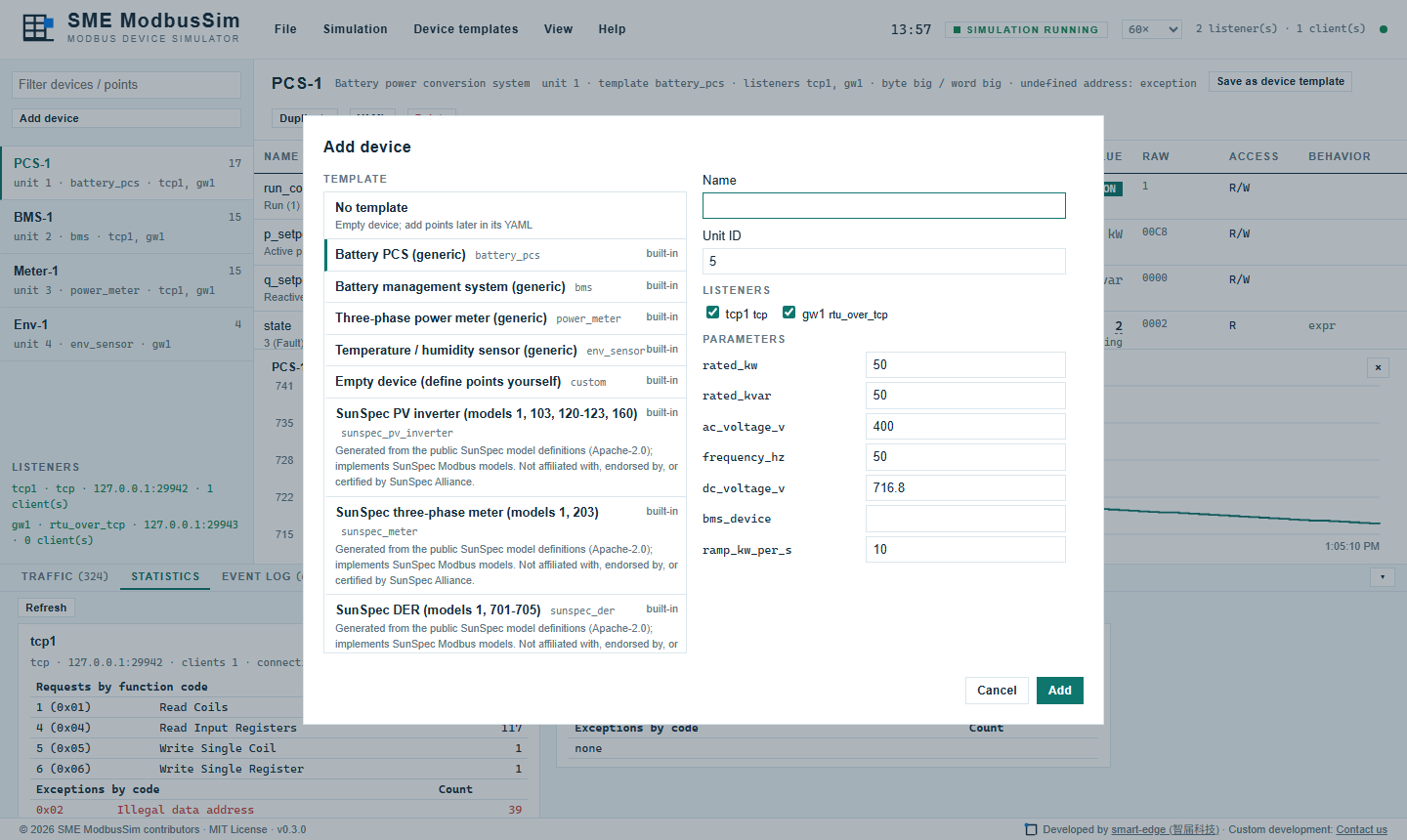
Add a device
Add device (top of the device list) opens the template browser:
- the list shows every template with its title, name, description and source (built-in or user, see Behaviors and templates); No template creates an empty device whose points you add in its YAML;
- the parameter form is generated from the template's
params, pre-filled with the defaults; only values that differ from a default are written to the device'sparams; - the unit ID is pre-set to the next free id on the selected listeners (all listeners checked =
listenersomitted).
Per-device actions
The buttons in the device header:
| Button | Action |
|---|---|
| Save as template | Save the expanded points as a user template |
| Duplicate | Copy the device as {name}_copy with the next free unit ID on the same listeners |
| YAML | Edit only this device's configuration (rename allowed) |
| Delete | Delete the device (after a confirmation) |
The same operations are available over HTTP, see HTTP API.
Editing values
- Points with
labels(enums, SunSpecenum16) are edited with a drop-down of the labels. - Coils, discrete inputs and
boolpoints toggle on click. - Nullable points (SunSpec) show
—when the value is null (not implemented); choose—in the drop-down or leave the input empty to write null.
Reserved point names
Behavior expressions see the device's points by their identifier (non-word characters replaced by _) together
with t, dt, hour, pv and the functions (sin, cos, min, max, clamp, noise, ...). A point whose
identifier equals one of these names is rejected when the configuration is loaded, e.g.
device 'X': point name 'pv' is reserved in behavior expressions. Rename the point (pv_kw, t_amb, ...).